Alex Hern at The Guardian took the time to actually read the terms we all agree to when we sign up for the various email services offered by big tech companies. Not surprisingly, he found that Apple, Google and Yahoo each include items in their terms of service that give them the right to access and read users’ emails.
As Hern noted, Google’s terms for Gmail require users to ”acknowledge and agree that Google may access… your account information and any Content associated with that account… in a good faith belief that such access… is reasonably necessary to… protect against imminent harm to the… property… of Google.”
Similarly, regarding iCloud email Apple’s terms say that it ”may, without liability to you, access… your Account information and Content… if we have a good faith belief that such access… is reasonably necessary to… protect the… property… of Apple,” Hern noted, adding that Yahoo mail can also be accessed by Yahoo according to the service’s terms.
It was recently reported that more than 50% of America are now smartphone owners, and this has become a stark realization for business owners and marketers. This growing trend of on-the-go consumers makes it incredibly important for small businesses to evolve into mobile-focused organizations. Not only is marketing towards these mobile customers critical, but so is making sure you can operate your own business no matter where you are.
As this trend continues to grow, mobile phones will play a larger role in our lives and our businesses. If you don’t have a smartphone, now just might be the time to make that leap. Personally, I waited quite a while before getting one, and now I can’t imagine why I waited so long or how I could ever go back.
If you are a small business and smartphone owner, there are likely apps you use regularly to keep things going on the move. Mail, web browser, and the like are all pretty standard, but here are a few you might be missing out on. I have used each extensively and I’ve found the following apps to be essential.
These four apps make organizing your thoughts, finances, and marketing easier even when you’re away from the computer or office. The apps also sync with a desktop version, allowing a seamless connection between your smartphone and your computer.
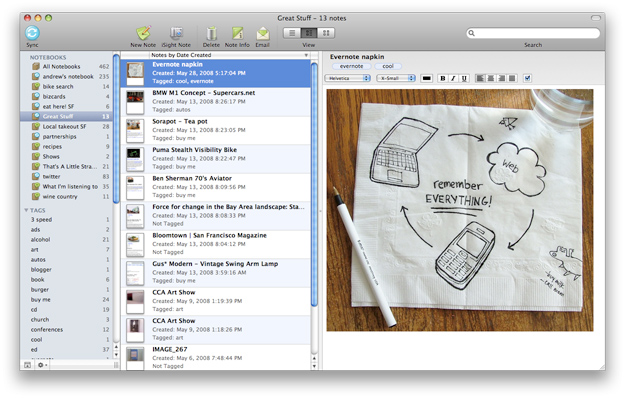
Evernote is the quintessential note taking and storing app. It allows you to keep every thought you have written down, saved, and organized properly.
You can create different folders so your business and personal notes are kept separate, as well as tags for easy identification. Newly added, the app now features reminders that can be added onto each note you take so you never forget to do exactly what you wrote down.
Formatting text is a breeze like you can in other text editors. Sharing to social networks is also directly integrated. So if you put together something you’d like to share on your Twitter or Facebook page, you can do it directly from the app.
The computer version of the app also allows for seamless, easy syncing of all your notes. With this feature, anything you write on your phone will be updated on your computer, and vice versa. You’ll never skip a beat or need to copy already written notes over.
The bottom line is it makes everything easier — something every small business owner can use. Many people use Post-It notes to control the constant stream of thoughts they have every day when it comes to managing a business. Evernote makes it convenient for you to store those in an organized fashion for the long haul.
2. Wunderlist ($Free, iPhone / iPad / Android / Mac / PC / Web)
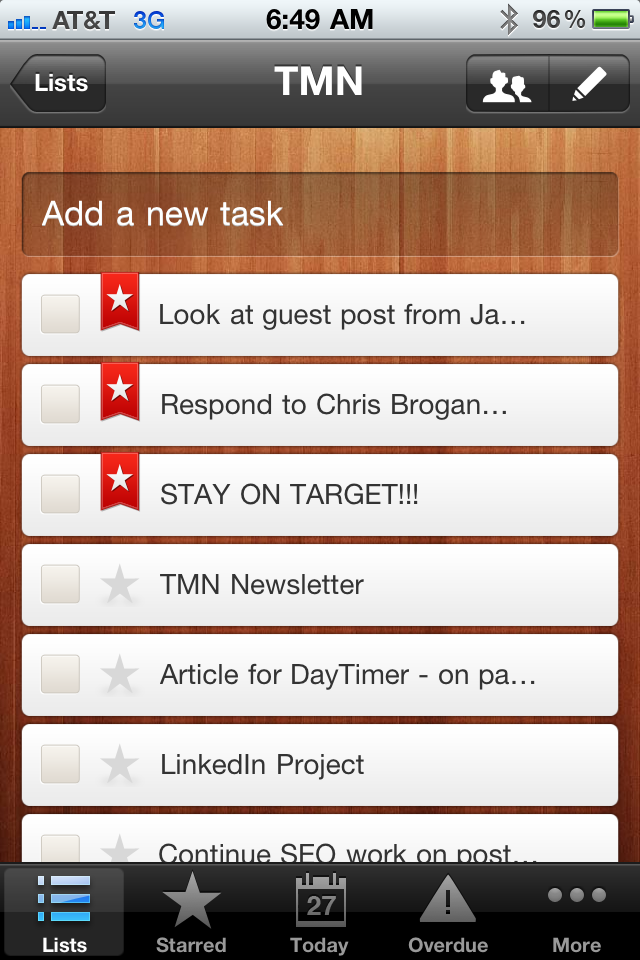
This app is about as handy and no frills as a to-do list app should be. I will be the first to say that an app which keeps track of things you need to do seems a bit frivolous. But after going sometime without it and trying to use other apps like Evernote to do the trick, I find this much better.
All Wunderlist enables you to do is create a running to-do list of all your tasks. And it works perfectly! You can make certain tasks a priority and keep them atop the list. Likewise you can set reminders or due dates, so you won’t forget. The app will send you a push notification ensuring you really remember to do that thing you wrote down last week.
I find that pretty handy with so much going on between life and business.
Naturally, you can add longer descriptions to tasks and include details if need be. You can share lists directly or via email with others who might need some guidance. For example, making a to-do list for an intern or employee might be helpful if you’re away or simply want to take a more hands-off management approach.
It helps keep me on track and organized, which is something I try to not take for granted. To mark tasks as done, just check their corresponding box and off they go. It’s kind of gratifying, like crossing off something on paper you needed to do.
Once again, this app has the syncing ability from smartphone to computer, so you’re always updated across the board.
3. Mint (Free, iPhone / iPad / Android / Web)
Finances in a quandary? No idea where your money is going? Can’t understand your bank’s outdated web dashboard? Then Mint is for you.
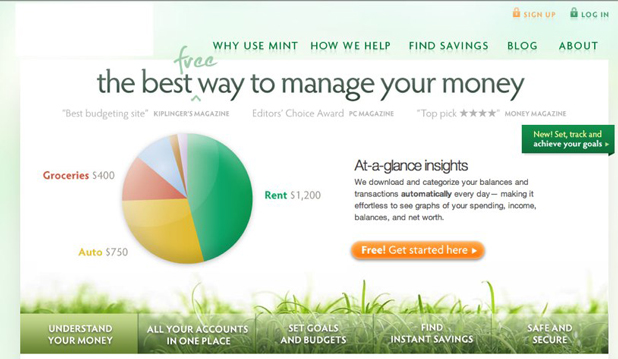
Mint is a simple and secure application that connects directly with your bank account to monitor financial activity. It produces these nifty, straightforward charts and graphs, so you can visualize your business’ spending.
It really makes things crystal clear when it comes to tracking revenue and expenses. Sure, your bank probably has a way of giving you reports and showing what’s coming and going, but nothing like this I can assure you.
Mint is widely trusted among people and businesses to track their money, so it’s incredibly secure. You can even setup a pass lock before gaining access to the app. Just sign up, link your account, and Mint will start tracking the numbers.
With a much clearer view of how your money is being spent, you can fine-tune your budget and allocations to work better for your business. Expenses can be grouped into categories and allotted a monthly budget. Going over this will prompt an alert, so you can keep a close eye on exactly what is happening with your money.
The app’s sleek design combined with insightful metrics make it a win-win for small business owners.
4. Facebook Pages App
A little more than six months ago, the main Facebook app wouldn’t have made it to this list. It took the developers at Facebook far too long to get an app right. Not only was its design clunky for years, but it didn’t encourage users to keep using Facebook on their phones.
I doubt they truly realized the importance of this fact until it was completely updated and turned into the app we have today. Right around the time of this redesign, they saw a big boost in mobile users. Today a huge portion of their traffic comes from people using the app, and it’s pretty clear why.
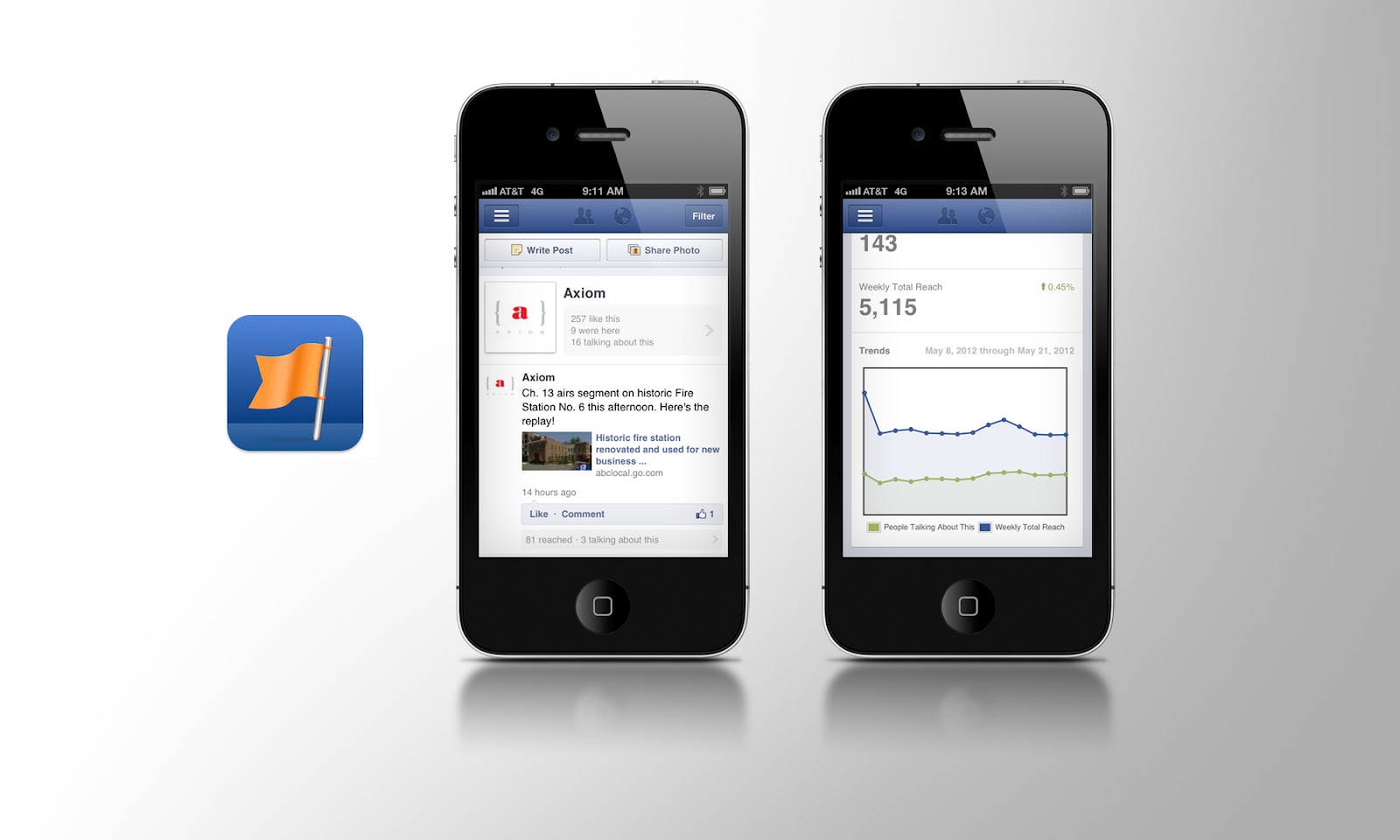
With that said, the Facebook Pages app is right on target, allowing business owners and marketers to easily monitor their pages.
Simply log in and add a post, picture, or video, and share away. The mobile-friendly nature of the app encourages business owners to keep their audiences in the loop no matter where they are.
Events, news, or spontaneous updates now have no trouble being shared immediately with your following from the app. You can moderate comments just as you would on a PC, monitor your page’s Insights, and use plenty of other helpful features, making the management experience a piece of cake.
Plain and simple, if you manager or contribute to a Facebook page for your small business, get the app.
5. Bonus – Gmail (iPhone / iPad / Android / Web)
This one is added as an extra since not everyone uses Google’s email platform for their business. Personally, I have 3 Gmail accounts and keep tabs on them all on my smartphone so this app is essential.
Even if you just use Gmail for personal email, I would recommend trying this app out. They redesigned it completely not long ago and it really excels. The design and layout is nearly flawless now in my opinion. Plus multiple account integration is a breeze.
If you didn’t know, for only $5 per month, you can use Gmail as your mail provider with a specific domain address. Your email can still remain examples@example.com, but instead of using the regular client, you can use Gmail.
Not worth it to everyone, but for lovers of Gmail on mobile and the web, it’s definitely an option worth considering.
What Must-Have Apps Would You Recommend?
So there you go, those are my 4 (or 5) best smartphone apps for helping you run your small business. Nothing fancy or intricate about any of them, just good, solid apps to make your day-to-day business tasks easier.
Google on Monday announced a change to how it offers free cloud storage to its users: 15GB will now be shared across Google Drive, Gmail, and Google+. This change will start rolling out over the next couple of weeks.
Previously, Google offered 10GB for Gmail plus another 5GB for Drive and Google+ Photos. Now the company has decided that it makes more sense to unify the free storage across its three services.
As part of the change, Google is tweaking its Drive storage page to show a pie chart that breaks down your storage use across the trio. Here’s how it looks:
As before, you can still upgrade your storage space. Plans range from $4.99 per month for 100GB to $799.99 per month for 16TB.
What is most interesting for Gmail users here is that the 25GB upgrade is no longer the limit. Any additional storage you purchase will also apply to Google’s email service.
Google Apps
The Google Apps story is only slightly different: Google is offering its business customers 30GB of unified storage across Drive and Gmail. Storage will also be shared with photos customers upload to Google+ larger than 2048px, and just as before, files created in Docs, Sheets and Slides don’t count against this storage quota.
Google Apps customers are also no longer limited to 25GB for their inboxes. Once again, additional purchased storage can be shared and used by Gmail.
This unification will help Google market how much storage it offers by default, as well as push its storage plans to existing users. It’s not so much a smart move, as a necessary and obvious one.
With more and more people searching online and storing information, how much does Google and other search engines really know about you? Take a look at this infographic by Dell Gines to find out what just how much information does Google know about you.
By Devon Glenn at Social Times:
Google’s popular video chat tool, Google+ Hangouts, is coming to Gmail.
The company will be gradually rolling out the upgrade to all Gmail users
beginning on Tuesday.
Hangouts in Gmail are aimed at the day-to-day interactions that
usually happen over email. The new feature will replace Google’s
existing video chat.
Located in the same sidebar as the chat list, Gmail users will be
able to access Hangouts straight from their inboxes instead of having to
jump over to Google+.
That said, “if you and the person you’re chatting with also use
Google+, you’ll get even more from the Hangouts experience,” wrote
Google product manager Fred Brewin in a blog post. “You’ll be able to
video chat with up to nine people at once, watch YouTube videos
together, collaborate on Google documents and share your screen. Plus,
Hangouts has a bunch of fun effects that you can try out…because any
conversation is better when you’re wearing a virtual mustache or pirate
hat.”
By Guillaume Bouchard,
Between social media campaigns, link building tasks,
analytics reports, meetings, networking events and all that other good
stuff that fills the inbound marketer’s time, there’s a real need to
streamline all the busywork so we can do our jobs more effectively.
To do this, we’ve compiled some of our favorite browser extensions – some new goodies, some old classics, and more.
We’d love to know about yours too, so make sure to drop a comment below!
Email
1. Boomerang for Gmail (Chrome/Firefox)
A one-stop-shop for scheduling, archiving and prioritizing emails in Gmail. Boomerang
lets you schedule messages for the future, postpone messages until
you're ready to read them and prioritize important mail so it doesn’t
get buried in your inbox.
2. Boomerang Calendar (Chrome/Firefox)
Yet another great product from Boomerang is Boomerang Calendar. This is an awesome tool for scheduling group meetings and coordinating calendars.
The tool recognizes dates and times written in your email and
highlights the text in red, yellow, or green for free/busy status.
Boomerang Calendar will email all participants asking which of those
times works for each of them, with a form they can fill out directly
from inside their email.
3. Gmail Manager
If you manage multiple Gmail accounts, Google Mail Checker helps you track and manage them directly from your toolbar. For Firefox users, the Gmail Manager add-on
displays account details including unread messages, saved drafts, spam
messages, labels with new mail, space used, and new mail snippets.
4. LastPass (IE, Firefox, Opera, Safari)
Protect, store, and easily manage your passwords across all your devices. LastPass
securely syncs your passwords across all your browsers and devices –
plus it remembers log in credentials and other personal information to
save you time.
Productivity
5. RSS Live Links (Chrome)
Catch up on your reading with this feature-rich RSS feed extension. Similar to Firefox’s Live Bookmarks, it displays headlines from your feeds in your bookmarks bar.
It scans your open tabs and allows you to subscribe to feeds. You
also get fun sound notifications when one of your subscribed feeds is
updated with fresh content.
6. Session Buddy (Chrome)
Session Buddy lets you select and save tabs or windows in your
browser. This is really useful for when you want to retrieve something
from your history. You can give the session a name then launch it later.
7. Decreased Productivity (Chrome/Firefox)
OK, so this extension is actually meant to be a sneaky way to help you browse NSFW content at work. Decreased Productivity
basically strips away all the styling from a page so that you only see
text. This can actually be beneficial to your productivity by getting
rid of any superfluous visuals or distractions.
Site Reviews
8. Wappalyzer (Firefox/ Chrome (beta))
Wappalyzer is
really useful when inspecting websites or finding weaknesses. Find out
what the website is using (Drupal, Wordpress, Ubuntu, etc.), what
analytics tools, JavaScript frameworks, and more!
9. Chrome Sniffer (Chrome)
The Wappylyzer for Chrome, Chrome Sniffer
allows you to inspect everything from the CMS /JavaScript library,
analytics tracking code, social plugins and more. Little icons will
appear on your address bar displaying all the pertinent details.
10. Firebug (Firefox/Chrome)
Firebug is
excellent for a quick debugging or editing of a website’s CSS, HTML,
JavaScript and more. Inspect HTML elements through a few mouse clicks.
You can also use it to remove or block pop-ups.
SEO Extensions
11. FlagFox (Firefox)
FlagFox is a simple, unobtrusive tool that displays a country flag of a website's server. By clicking the flag icon, the built-in Geotool shows you what city the server is in, local time and ISP.
12. Ubersuggest
If you’re looking for keyword ideas or something to write about for your next blog post, Ubersuggest
is “suggestion on steroids”. Type in a word or sentence and it will
instantly pull up a list of hundreds of new longtail suggestions in
alphabetical order. You can use this is conjunction with the Google
keyword tool to see search volume results.
13. Redirect Path (Chrome)
Redirect Path
flags up 301, 302, 404, and 500 HTTP status codes. It spares you the
headache of having to copy and paste URLs into a separate tool to sniff
out any chained/broken website redirects. It also displays HTTP Headers
and the server IP.
14. Rankerizer
See exactly where you rank in Google, Bing, and Yahoo. Monitor and
track an unlimited number of keywords plus track your ranking trends
over time to see if you’ve risen or dropped.
15. WOT (Chrome/Firefox)
A must extension for safe browsing. Find out the trust levels of
websites through their intuitive traffic light-style rating system.
Toolbars
16. SEO Book (Firefox)
The SEOBook Toolbar
offers a wealth of website data including Google PageRank, backlinks
count from Open Site Explorer, Majestic SEO, Blekko, Yahoo.
You can see metrics for social media, social bookmarking, and social news sites. Rank Checker is built right in to the tool bar.
You also have a cool analysis tool, SEO X-Ray, which shows you the keyword density, headings, meta description, links pointing to the page, and much more.
17. SEOmoz (Firefox/Chrome)
This is another fantastic toolbar, created by SEOmoz, that will let
you quickly scan the quality of a site/page. This is a really handy extension to have.
Most people who use it would agree that it provides a more accurate
PageRank value than Google. Google’s PR is updated less frequently, so
we like to rely on SEOmoz’s “mozRank”.
Social
18. Amplify (Chrome/Firefox)
Clip and share
parts of articles, blog posts, videos, or images that you find on the
web and add your two cents before sharing them on Twitter, Facebook,
Tumblr, Posterous, and more.
19. SocialBro (Chrome)
SocialBro is an intuitive and simple tool for managing your Twitter community:
Manage your lists.
Get insights about your community.
Find out who isn’t following you.
Find out popular influencers in your niche.
Find the best times to tweet.
See competitor stats.
So much more.
Definitely a nice tool to use for reporting Twitter metrics to clients.
20. Hover-Zoom (Chrome/Safari)
This is a good little extension
for viewing linked images in their full size just by hovering the mouse
over them. Really great for sites like Reddit, where you would normally
have to follow a link to view an image.
21. Awesome Screenshots (Chrome/Firefox/Safari)
Awesome Screenshots is similar to Amplify. It’s a great tool for social sharing letting you easily capture, annotate, and share a page.
22. Pinterest Pro (Chrome)
If you're active on Pinterest, this extension
is a great short-cut for adding images from the web directly to your
board. Right-click, add to Pinterest, done. It’s made by the same maker
of "Friendsheet for Facebook."
23. Buffer (Chrome/Firefox)
This is a great tool
for community managers. Add articles, images, and videos to your Buffer
account then schedule them for publishing on all your social platforms.
Now Get Organized!
Once you’re done downloading some of these extensions, you can
organize them with AppJump. This Chrome extension allows you to locate
and launch your applications and other extensions quickly from a
drop-down menu on your toolbar.
What are some of your favorite inbound marketing apps? We would love to hear what you use to get things done!
By Mike Isaac at AllThingsD:
Google announced on Friday morning the acquisition of Sparrow, an email client for iOS and Mac users that is widely considered an improvement over the Gmail app for the iPhone and Apple’s native Mac Mail app.
It’s a full acquisition, meaning tech and Sparrow’s full Paris-based
team will join Google. The exact terms and price of the deal were not
disclosed.
“The Sparrow team has always put their users first by focusing on
building a seamlessly simple and intuitive interface for their email
client,” a Google spokesperson told AllThingsD. “We look forward to bringing them aboard the Gmail team, where they’ll be working on new projects.”
While Sparrow’s team will continue to update and support its existing
application, don’t expect any new features or vast improvements on the
app as it currently stands. Most of what we’ll see going forward are
critical bug fixes, small updates and basic functionality maintenance.
Some users may be upset at the lack of updates going forward,
considering that Sparrow is a paid application. Also frustrating: The
company had an iPad app in the works — that may be put on hiatus,
considering the acquisition.
What could remedy that, however, is the potential promise of improved
Gmail for Apple devices. The Sparrow team will join the Gmail team to
work on Google’s mail clients, most likely with an emphasis on the
team’s Apple-centric work.
“We care a lot about how people communicate, and we did our best to
provide you with the most intuitive and pleasurable mailing experience,”
CEO of Sparrow Dom Leca wrote in a company blog post. “Now we’re joining the Gmail team to accomplish a bigger vision — one that we think we can better achieve with Google.”
Whether you love Google or love to hate Google, you have to admit one thing. Google offers a lot of free tools to use with the convenience of being able to access them with one login.
Marketers in particular should take advantage of these tools to get more out of their search engine and social media marketing experience. The following are some of the top Google tools marketers should embrace from A to (almost) Z!
1. Google AdSense
Ever created a niche website for linking purposes, affiliate marketing, content development, or another reason that never panned out? If the website gets even a moderate amount of traffic, and you have no other use for it for the time being, why not earn a little income off of it using Google AdSense? By simply placing some ad code in the header, content, and sidebar of the website, you can earn some passive income. The amount you earn will depend on the topic of the website and the amount of visitors it receives.
2. Google AdWords
If you’re not getting good enough traction with organic search traffic, then you might want to consider a paid search campaign using Google AdWords. By bidding for the right keywords, you can gain a considerable amount of qualified traffic where the conversions will meet or exceed the value you pay for your ads. Be sure to use advanced targeting options for location, mobile or desktop browsers, and other criteria to get the target audience you want.
3. Google AdWords Keyword Tool
Need keyword ideas for your search engine marketing campaign or paid search advertising? Try the Google AdWords Keyword Tool. When you enter a term that offers a wide range of ideas, like SEO, you will get groupings of keyword ideas that you can dig deeper into. While the total of the global searches is not always spot on, it can give you an idea of whether one keyword is more or less popular than another. You can also see an approximate cost per click (CPC) amount, if you were trying to target the keyword using Google AdWords.
4. Google Alerts
Want to keep on top of the latest news, mentions of your brand, or other items in Google search? Then set up your Google Alerts. When you enter a search query, you will get a sample of the results you would receive and the option to have them delivered regularly to your email inbox or RSS reader. You can use this to keep up with your competition as well to see where they are getting mentioned or are building profiles.
5. Google Analytics
Google Analytics is probably one of the most powerful Google tools that you can use a as a marketer. You can learn so much about your website’s visitors including, but not limited to, the following:
Demographics – Learn more about your audience, including their location and language.
Social Engagement – See what social networks visitors come from and how they interact with your website’s social plugins (custom coding must be implemented).
Technology Used – Find out what browsers, operating systems, and networks your visitors are using to view your website.
Mobile Information – Curious if you need a mobile website? Find out how many of your visitors are using mobile technology.
Traffic Sources – Analyze what websites, keywords, search engines, and other referrers send traffic to your website.
Top Content – Get a handle on how effective your content is by seeing your top entry and exit pages.
What Leads to Conversions – Set up goals in Google Analytics to find out which visitors complete conversions such as purchasing a product or signing up for a mailing list.
So really, there is no excuse for not using this powerful and, best of all, free tool on your website.
6. Google Blogger
If you want to start a blog, but you’re not ready to commit to a self-hosted blogging platform such as WordPress, then you might want to consider Blogger. If it’s been awhile since you last took a look at it, you might be interested in some of the latest improvements noted in the above video. There have been rumors in the past that getting links on Google-owned properties can help with the indexing of your website, so don’t overlook the power of Blogger!
7. Google Blog Search
You may be wondering exactly what is so special about Google Blog Search that merits a mention as a powerful Google tool. It’s not necessarily the search itself, but the fact that you can turn the search results into an RSS feed. Why is this so great? If you take the following URL: https://www.google.com/search?hl=en&ie=utf-8&q=link:http://domain.com/&tbm=blg&tbs=sbd:1&output=rss
Then replace domain.com with your website, you can get an RSS feed of the latest links to your website on a blog.
You can use this to keep up with mentions of your website on blogs, or you can use this to keep up with your competitors. For example, if you are looking for guest posting opportunities, seeing what your competitors can get might lead you to some good places to submit to yourself.
8. Google Books
If you love reading, then Google Books can be a good place to go to find books online in all genres, some of which you can read for free. But from a marketing perspective, if you have a book, then you will want to get it listed on Google Books so that you can sell it to an even larger audience, especially now that Google is competing with iTunes and other online media retailers with their new Google Play store for music, books, movies, and Android apps.
9. Google Calendar
Want to keep up with important events in your daily schedule? Then Google Calendar is the answer. You can share your calendar with other users or even to the public and embed it onto your website. You can even set reminder alerts to be sent as a popup when you’re logged in to your Google account or via email. Use it to keep track of guest posting opportunities, Twitter chats, advertising expiration dates, editorial calendars, and much, much more.
10. Google Chrome
If you’re not using Google Chrome, then you’re missing out. This browser really is fast and has a ton of extensions, apps, and themes that you can install to increase your marketing productivity including some favorites such as:
Google +1 Button – +1 and share a web page to your Google+ profile anywhere using this extension.
Google+ Notifications – See your Google+ notifications on your browser (when logged in to your Google account).
Klout – Addicted to knowing Klout scores? Use this to see Klout scores next to users while using Twitter.com.
SEO Site Tools – Learn a lot of valuable on-site search engine optimization information about any website you are browsing (including Google PageRank) using this extension.
Simple Social Metrics – Install this extension to quickly see the number of tweets, likes, and +1s for any page you are browsing.
11. Google Docs
Want to share documents, spreadsheets, presentations, drawings, and tables with other users to view online or download? Then Google Docs is for you. You can collaborate with multiple users or just give access to a read-only version of documents like the publicly accessible Twitter Chat Schedule spreadsheet. You can even create forms and send them via a link or directly in an email to collect survey answers, crowdsource post information, and other data.
12. Google DoubleClick Ad Planner
Need some quick traffic or demographics information for a website? Get it using Google DoubleClick Ad Planner. The larger the website, the more information you will be able to find about it including the average visitor’s age, gender, education, household income, other sites visited, interests, and keywords searched for.
13. Google Drive
Want to share files online? Then Google Drive
might be worth a try. You can currently store 5GB in Google Drive, 1GB
in Picasa, and 10GB in Gmail for free. Pricing begins at $2.49 per month
for 25GB and goes all the way up to $799 per month for 16TB. Welcome to
the Google cloud!
14. Google Gadgets
Want to extend the functionality of your website, browser, or Google Account? Check out the line of freebie Google Gadgets
available at your disposal. Gadgets are organized in categories
including news, tools, communication, games, finance, sports, lifestyle,
technology, and politics.
15. Google Insights
Google Insights
allows you to search for keywords to see their trends over time. This
way, you can see whether a keyword is gaining in popularity, see
worldwide search trends over the course of a year to find popular months
or seasons for a search, see search volume by region, and find a list
of top ten related searches and rising searches.
16. Google Mail (Gmail)
Need email with a smart filtering system? Gmail
might be the answer. One of the best features in Gmail is the ability
to filter messages into multiple labels and have them skip the inbox or
simply label them for easy archiving. Using your Gmail filters wisely
can help you keep your inbox clean and organized. Plus, the search
function on Gmail is not too shabby either.
17. Google Places
Want your local business to show up before organic search results? For some keywords, it can thanks to Google Places. Be sure that you claim or add your listing on Google Places, complete your profile, add photos & videos, and encourage reviews so that your business will make it to the first page of search results.
18. Google+
Google+
is Google’s latest and, to date, most successful foray into the social
networking world. They have not only created a thriving social network,
but they have incorporated it into almost every aspect of the Google
experience, including Google search results themselves. Thanks to
personalized search results, you can actually rank higher than normal in search results for those you are connected with on the network. Be sure to check out this quick guide to learn why you should be on Google+!
19. Google +1 Button
With +1 counts showing up in search results, you might want to go ahead and install the Google +1 Button
on your website and content. This will make it easier to share on
Google+ as well as add to its social engagement numbers. In addition,
when someone +1s your website, their connections might see it placed
higher in search results as well.
20. Google Reader
Google Reader
allows you to view and organize your RSS feeds all in one place. If
you’re already using your Google Account for Gmail and Google+ on a
regular basis, why not keep track of your favorite blog’s RSS feeds,
Google Alerts, and other feeds in the same account.
21. Google Translate
If you run into an email, blog comment, or webpage in another language, use Google Translate
to quickly translate it into yours. The best part is you don’t even
need to know what language it is in thanks to the auto-detect features.
It may not be a perfect translation, but it will get the main point
across.
22. Google Trends
Google Trends
offers a variety of information such as the searches that are currently
popular, Google Insights data for keywords, and traffic trends for
websites if you search for a particular domain.com. You can
even enter multiple domains, separated by a comma, to compare traffic.
Note that traffic trends are only available for websites with a high
volume of traffic.
23. Google Voice
Google Voice
allows you to create a phone number to make and receive phone calls and
text. You can view your messages in an interface similar to your Gmail.
It’s a good alternative if you don’t want to give out your office or
cell phone number for particular contacts!
Another cool little
trick with Google Voice is that you can set up a Google Voice number
specifically for tracking how effective your phone number placement on
your website is. Every time someone calls in using your Google Voice
number, you can count the calls in your Google Voice account. This will
allow you to test the size, location and color of your website phone
number.
24. Google Webmaster Tools
Google Webmaster Tools
is another Google product that puts a large amount of valuable data at
your fingertips. If you have already set up your website with Google
Analytics, you can easily add it to Google Webmaster Tools to start
learning the following.
Site Configuration –
This section checks your website’s settings on the web, including
preferred domain canonicalization, sitelinks, URL parameters, change of
address, and users who have access.
Site Health – This section includes crawl errors, stats, blocked URLs, and malware alerts.
Site Traffic – This section includes search queries (aka, possibly some of the keywords omitted from Google Analytics thanks to the keyword not provided,
links to your website (a comprehensive view of your backlink profile),
internal links, and +1 reports. +1 reports tells you the search impact
of results showing your website’s +1 count vs. without showing it, +1
activity on your website, and audience demographics.
Site Optimization – This section includes your sitemaps, HTML improvement suggestions, content keywords, and other resources.
Also,
be sure to keep an eye on the Labs section at the end. It changes with
new, experimental Google Webmaster Tools features. One Labs feature that
I would like to see return is statistics on any pages for which you are
the author using Google authorship.
25. Google (Owned) YouTube
Last, but not least, if you want to dominate the video market, then start with Google-owned YouTube.
Not only will your video be available to YouTube’s millions upon
millions of visitors, but it will also be on prime real estate for
showing up in search results. Even if you can’t get your website on the
first page of search results through traditional SEO, you might be able
to get there with video!
There you have it – some of the most powerful Google applications and tools on the web. What are your favorites?
About the Author: Neil Patel is the VP of Marketing of KISSmetrics and blogs at Quick Sprout.